Free download and free local scan
Running the checker saves your latest scan on this computer and automatically uploads the OS version, architecture, CPU, GPU, RAM, DirectX and available drive space to robrun.lol. After upload, your default browser opens this site for payment and report access.
Preview app downloads
Mac preview (.dmg) · Windows preview (.exe)
macOS may block the Mac app while Apple notarization is pending. The Windows app awaits publisher signing.
What will the scan show?
The checker opens your private report page in your browser. Redeem a code to see the compatibility result and the hardware comparison. The official ROB RUN recommended specification covers Windows. A reviewer compares each item for the optional full report. Frame rate and anti-cheat compatibility require a play test.
Full report and activation code
The full report is priced at US$1.99. Closing the first offer opens a 15-minute US$0.99 offer. Pay with PayPal on your scan results page and return to the site for your activation code. Code holders can unlock their uploaded scan on the report page and return with the same code to read the result.
Explore your platform questions
Settings presets
Use the following profiles as practical starting points for a manual test. They are editorial suggestions for the controls available in your installed build. The exact graphics-menu labels and the resulting frame rate depend on that version, your resolution, driver and hardware. Record the original values before changing a profile so you can return to the same baseline.
| Setting to test | Lower-performance PC | Mid-range PC | Higher-performance PC |
|---|---|---|---|
| Resolution | Start at 1280 × 720 if available | Start at 1920 × 1080 | Start at 1920 × 1080, then test the display’s native resolution |
| Quality preset | Lowest available preset | Medium available preset | High available preset after a stable baseline |
| Shadows, if exposed | Lowest available level | Low or medium | Increase one level at a time |
| Texture quality, if exposed | Low, then inspect image clarity | Medium, watch memory use | Raise while checking for stutter |
| Frame limit, if exposed | Test a stable 30 FPS cap | Test a stable 60 FPS cap | Match a target your hardware sustains |
| Background applications | Close unused applications | Close unused recording and browser tasks | Check recording overhead separately |
Test a low-spec configuration
Start with a short route you can repeat and a setting combination that allows consistent control. Drive through the same streets, open the same interface and compare the result after one change. If lower resolution improves the result substantially, keep it while checking the other options. A frame target is useful only if the computer can sustain it during the encounters you actually play.
Find a balanced medium profile
Begin at 1080p with a modest preset and observe a normal session. Increase image-quality options one at a time. If changing one option introduces visible stutter, return that option to the earlier value and repeat the same route. Record whether the problem occurs while driving, opening an interface or entering a busy location so the next adjustment addresses the observed symptom.
Tune a higher-performance PC
Establish a stable baseline before raising resolution and quality together. Test recording or streaming separately because those tasks can change resource use. Check the exact graphics adapter used by the game on a computer with more than one GPU. Compare longer sessions as well as the first few minutes so your preferred configuration remains usable after the machine warms up.
Mouse movement, drivers and repeatable checks
Kefir identifies high mouse polling rate as a cause to investigate when frame rate collapses specifically during mouse movement. Open the mouse manufacturer’s configuration app, lower the polling-rate setting and compare the same movement in the same scene. Keep a note of both values. If this resolves the symptom, preserve that setting for another session before changing graphics quality again.
Check your graphics driver through its vendor’s supported update path. After updating, restart as requested and repeat the baseline test. For freezes, launch failures or connection messages, use the error-code guide and server information. These observations help you choose between a performance adjustment and the error-specific recovery step.
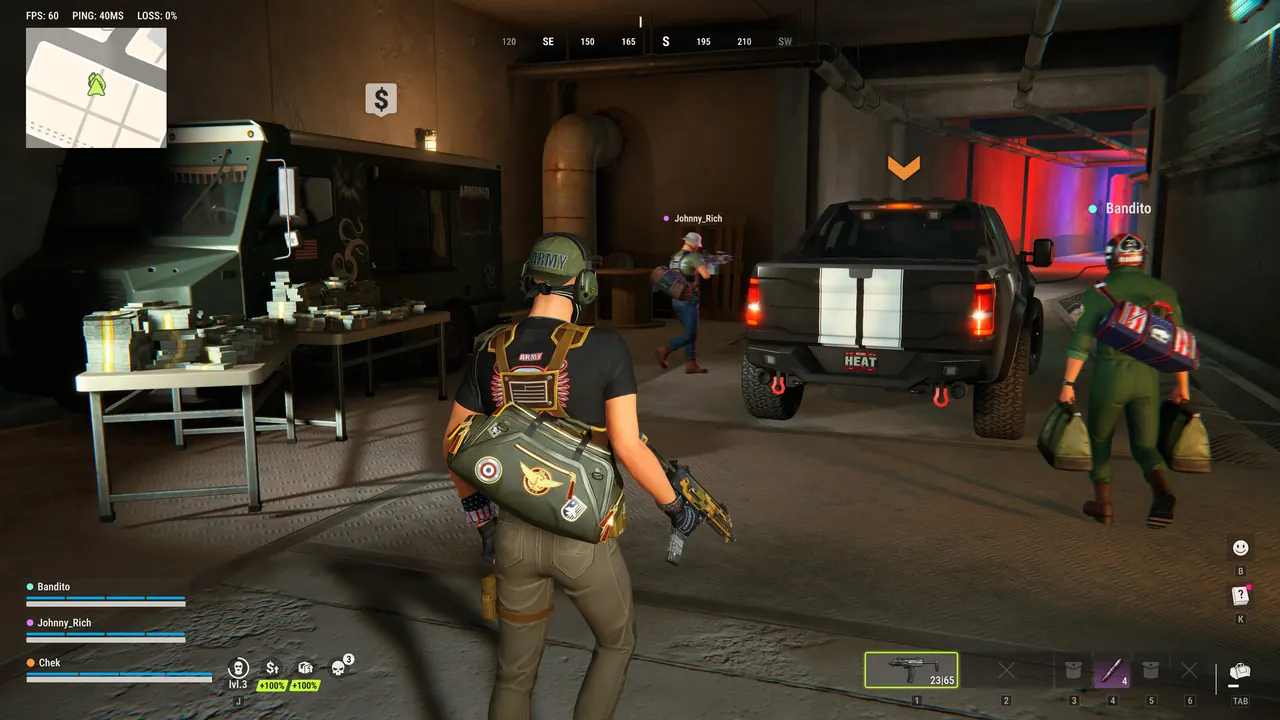
Controller support
Full native controller support remains unverified in the official material checked for this update. Steam Input provides a way to configure supported controllers, and an actual ROB RUN session is still needed to assess movement, aiming, menus and driving. Keep a physical keyboard and mouse connected during the test. Kefir documents E-0601 when the game fails to detect those input devices.
Connect and test a controller
- Connect the controller to the computer by a supported USB connection or its documented wireless pairing method.
- Open Steam’s controller settings and check that the device is detected and responds to the input test.
- Open the game’s controller configuration through Steam and review the available Steam Input layout.
- Compare the layout with the keyboard and mouse bindings shown in your installed game. Adjust individual assignments to your preference.
- Test movement, aiming, interaction, inventory and driving in a controlled session before carrying valuable equipment.
Suggested personal mapping
This table is a starting layout to configure yourself. Map each action to the actual key or mouse binding shown by your game, then check it during play.
| Controller input | Suggested action | Check during play |
|---|---|---|
| Left stick | Movement keys | Walk in each direction and stop accurately |
| Right stick | Mouse movement | Camera movement and fine aiming |
| Right trigger | Current primary-fire binding | Single presses and held input |
| Left trigger | Current aim binding | Hold or toggle behavior |
| A / Cross | Current interaction binding | Confirm the intended object is selected |
| Menu button | Current pause or menu binding | Open and close the interface |
| D-pad | Individually chosen item shortcuts | Match each assignment to the correct slot |
Pay particular attention to inventory navigation and vehicles because the same button can behave differently in another context. Save the layout with a recognisable name and keep notes about the functions that still need the keyboard. Use the Windows platform guide or Steam Deck guide for device-specific checks, then return here to follow the checker’s release status.
Quick answers
What are the best robrun settings for a low-end PC?
Start with a low available graphics preset, a modest resolution and a stable frame limit. The suggested profiles on this page are starting points for testing on your own hardware.
Does ROB RUN have full controller support?
Full native controller support has not been verified in the official material checked. Keep a physical keyboard and mouse available and test any Steam Input layout before relying on it.
Why does moving my mouse cause frame-rate drops?
Kefir recommends checking an excessively high mouse polling rate when performance drops sharply during mouse movement. Lower it in the mouse vendor’s app and compare the same scene.
How much do the scan and the full report cost?
Download and scan for free. The full report is US$1.99. Dismiss the first offer to get US$0.99 for 15 minutes. Pay once with PayPal on your scan results page.
Sources & updates
Last updated:
- ROB RUN — Steam / Kefir
- Kefir Help Center — mouse polling rate and error-code help
- Steam Input — Getting Started for Players
Official screenshots and gameplay clips © Kefir, from the Steam store. Early Access details may change with updates.