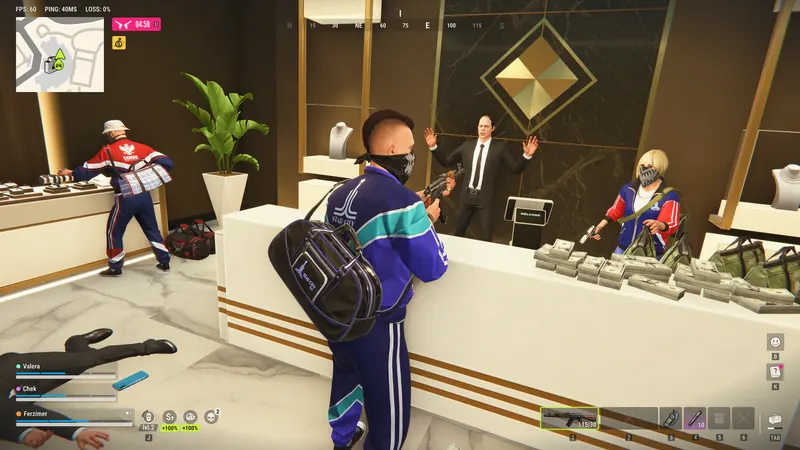
Match the exact error code
The following codes come from Kefir’s official error-code article, checked on November 17, 2026. Keep the full message from your screen alongside the code. A screenshot helps distinguish a startup failure from a disconnection after you have already joined a server.
| Code | Meaning | First check |
|---|---|---|
| E-0101 / E-0110 | Startup connection failed | Internet access |
| E-0102 | Download interrupted or filtered | Network filtering |
| E-0124 | Asset loading error | File verification |
| E-0201 | Session connection lost | Connection and restart |
| E-0301 / E-0302 | Old game version | Update through Steam |
| E-0303 / E-0304 | Damaged or mismatched data | Wait, update, verify |
| E-0401 | Steam authentication failed | Correct online account |
| E-0403 / E-0404 | EOS authorization issue | Files and security logs |
| E-0405 | Steam or library blocked | Steam and quarantine |
| E-0501 / E-0502 | EAC unavailable | Steam launch and files |
| E-0601 | Keyboard or mouse undetected | Physical input devices |
| E-0904 | Internal game error | Restart and report |
Use a clear troubleshooting order
Start with the server status and announcements and compare the incident time with your failure. Next, complete any pending game update and run file verification. Then inspect your network and any security-software event that coincides with the error. Consider reinstalling only after recording the result of those checks.
For each test, change one thing and launch through the same entry point. Write down whether the game reached the main menu, the server list or actual gameplay. That gives you a useful comparison between attempts. Keep your region, server name and approximate local time with the notes so you can identify an incident that affected several players.
Network and startup data
E-0101 and E-0110
Try opening a normal webpage on the same computer. If other applications also fail to connect, investigate that connection first. Once access is restored, launch the game again and note how far startup proceeds. Record whether the problem happens every time or only during certain periods.
E-0102
Check whether the network requires a browser sign-in, as can happen on guest Wi-Fi. Review a proxy or filtering product only if it is part of your setup. When testing a different connection, use one you are authorised to access and compare the same launch sequence. Keep security protection changes limited to an identified issue and follow the product’s documented recovery steps.
E-0201
This code appears after a running session loses its server connection. Record whether voice chat, other applications or other players failed at the same moment. A single disconnect provides limited information, so compare it with the timestamped notices on the server page and the result of a fresh launch.
Files and version mismatches
E-0124
Open the game’s Properties in your Steam library, select Installed Files and run the integrity verification. Let it finish and allow any replacement download to complete. Launch again after the process reports its result. If the failure repeats, preserve that result for a support report.
E-0301 and E-0302
Close the game and restart Steam so the client can detect an available update. Check the Downloads view for a queued or paused item and wait for completion. Make sure your next test launches the same installed copy you updated.
E-0303 and E-0304
Kefir includes a short wait of around ten to fifteen minutes in its guidance for this group. After that interval, complete updates and file verification. Compare available disk space and download completion if the client repeatedly replaces the same files. Save any storage or download error displayed by Steam.
Account and authorization
E-0401
Confirm that Steam is online and signed into the account you intend to use. Restart the client and game, then test again. Include the failure stage in your report, such as whether it occurs before the main menu or when joining a server.
E-0403 and E-0404
This group involves Epic Online Services authorization. Verify the installation and inspect relevant security-software logs before restarting the computer. If a product reports a blocked file, check the file’s installed-game origin and the vendor’s guidance before changing an exception.
E-0405
Check whether Steam responds normally and whether the security product recorded a quarantined game library. Use the Steam library launch entry after file verification. Preserve the quarantine event details for support if the same library is blocked again.
Anti-cheat, input and internal errors
E-0501 and E-0502
Launch from the Steam library and watch whether Easy Anti-Cheat starts. Verify files and restart the computer before another attempt. Record the EAC message separately from the game’s error window. If a security tool intervenes, investigate that specific event through its logs and support documentation.
E-0601
Connect a physical keyboard and mouse to the computer running the game, then test directly on that machine. Kefir specifically identifies remote and cloud environments as possible contexts for this input-detection failure. The PC settings and controller section explains what to check when trying a gamepad setup.
E-0904
Restart the game and repeat the action once if your session allows it. If the internal error returns, capture its complete text and the steps immediately before it. Include the installed version and the point where your result differs from the expected interaction.
Loading or crashing without a code
Describe the symptom as precisely as you can. A frozen loading screen, a closed process, a black display and low frame rate lead to different observations. Check the published system requirements and keep your CPU, GPU, memory and driver details ready. Close unused applications and compare a fresh session after restarting the computer.
For sharp frame-rate drops specifically while moving the mouse, Kefir recommends checking mouse polling rate. The settings guide within PC Check includes a practical baseline-testing workflow. If your difficulty starts while joining friends, use the server-change instructions to confirm that you are trying to join the same server.
Prepare a useful support report
Collect the code, full message, game version, hardware summary, region, server and timestamp. Describe the last action that worked and the first action that failed. Add the verification result and the changes you already tested. Remove unrelated personal information from screenshots before sharing them with support. Keep a copy of your report so a later response can be matched to the same incident.
Quick answers
What does robrun E-0201 mean?
The game lost its server connection during a session. Check connectivity, restart the game and compare with the latest server information.
What should I do for E-0501 or E-0502?
Check the Easy Anti-Cheat startup, verify the game files, restart the PC and launch from the Steam library. Record security-software messages if the issue continues.
Why does E-0601 appear during remote play?
Kefir associates E-0601 with missing keyboard or mouse detection, including remote and cloud sessions. Connect physical input devices to the host computer and test locally.
Should I reinstall immediately?
Start with server information, the error-specific check, a game update and file verification. Record the result of each step before considering a fresh installation.
Sources & updates
Last updated:
- What should I do if I get an error code? — Kefir
- The game won't load or keeps freezing — Kefir
- Mouse movement and FPS drops — Kefir
Official screenshots and gameplay clips © Kefir, from the Steam store. Early Access details may change with updates.